

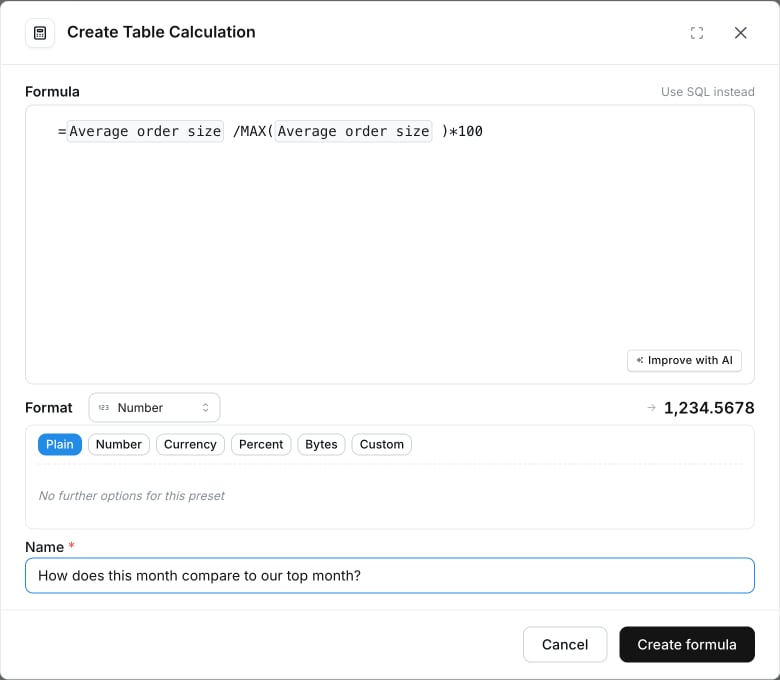
Why use formulas?
- Faster to write for common calculations. No
OVER (…)orCASE WHENboilerplate to remember. - Familiar if you’ve used Google Sheets, Excel, or Airtable.
- Portable across warehouses. The same formula compiles to the correct SQL for whichever warehouse your project is connected to.
Supported warehouses
Formula table calculations work on every warehouse Lightdash supports: Athena, BigQuery, ClickHouse, Databricks, DuckDB, PostgreSQL, Redshift, Snowflake, and Trino. The same formula compiles to the correct SQL for whichever warehouse your project is connected to.Writing your first formula
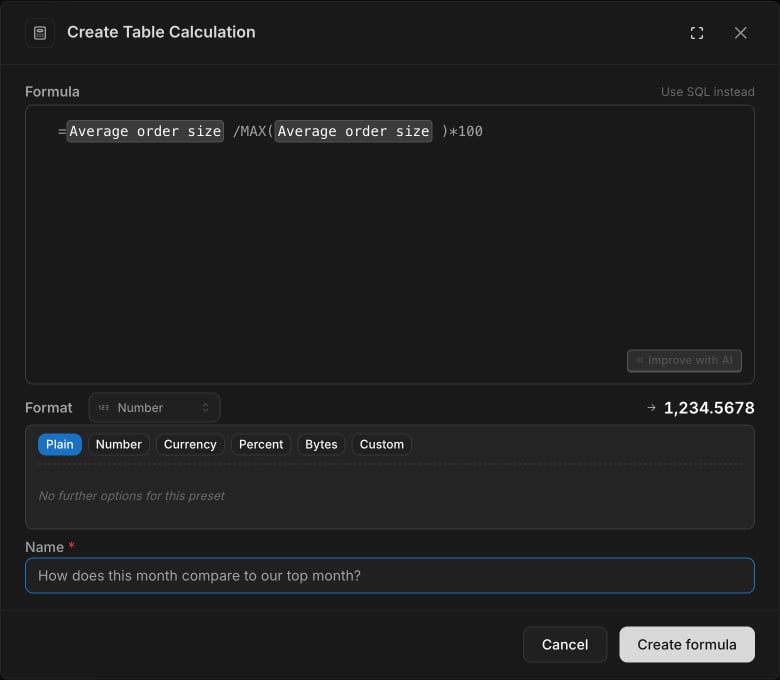
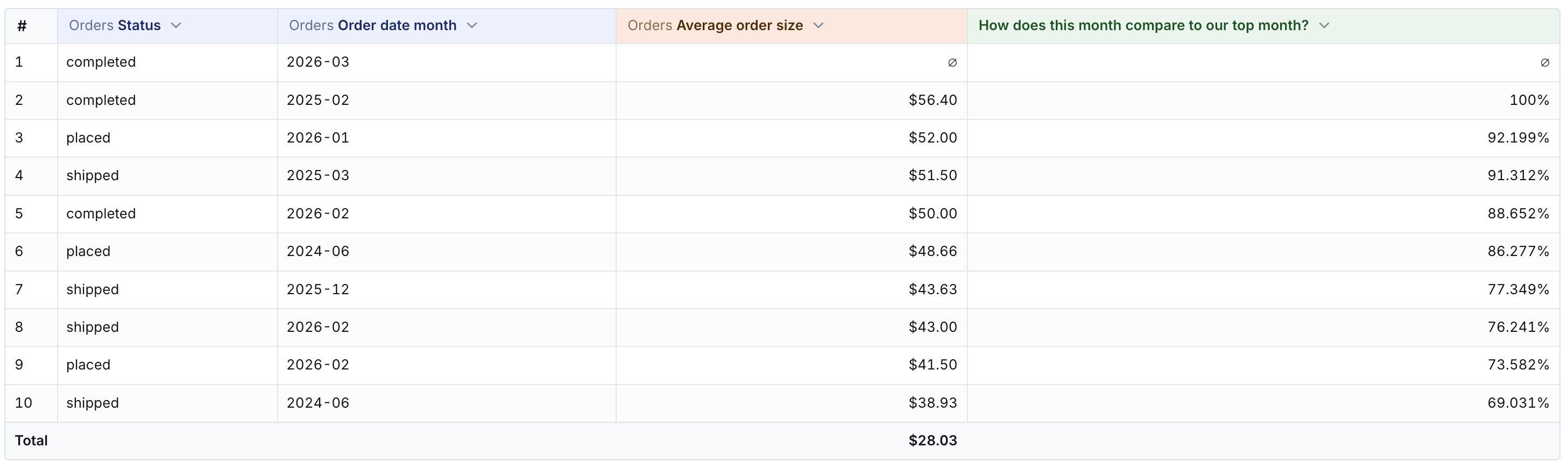
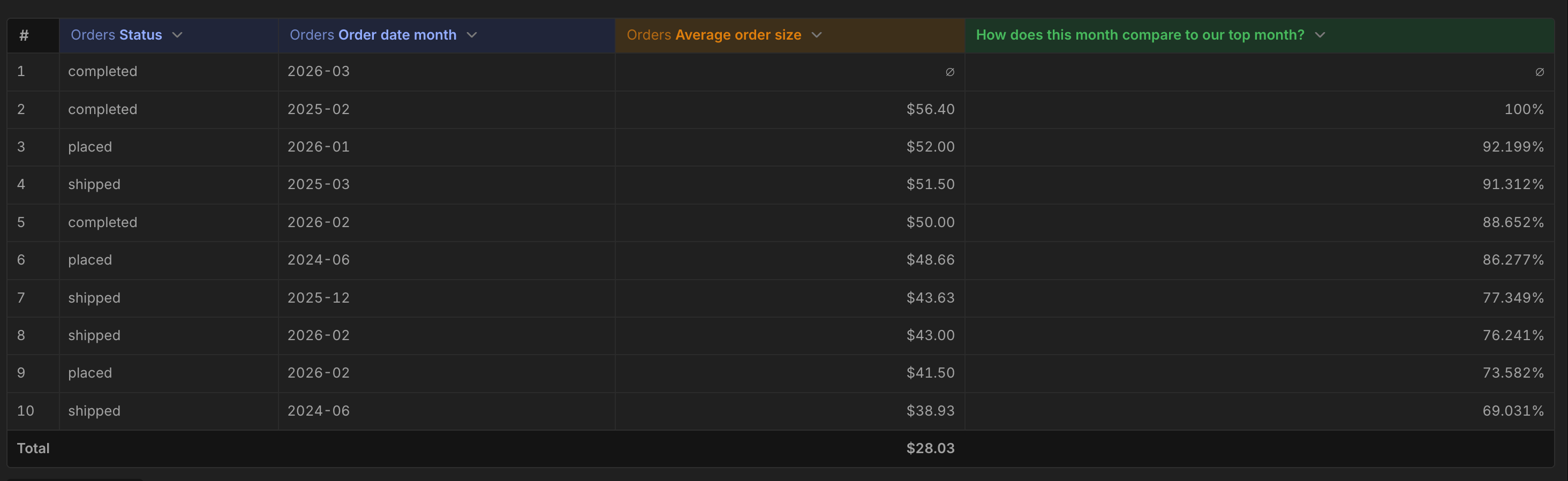
Every formula starts with=. Reference a field by its column name
(the same name you see in the results table header):
- Numbers:
42,3.14,-1.5 - Strings:
"hello"or'hello' - Booleans:
TRUE,FALSE - Column references: any field present in your results table
- Arithmetic operators:
+,-,*,/,%(modulo) - Comparison operators:
=,<>,>,<,>=,<= - Boolean operators:
AND,OR,NOT
Function reference
Math
Logical
String
Date
unit is always one of "day", "week", "month", "quarter",
"year" — quoted as a string literal.
Aggregation
Window
Null handling
Window clauses: PARTITION BY and ORDER BY
Window functions accept optional PARTITION BY and ORDER BY clauses,
written inline as extra arguments. Use them when you want a running
total, moving average, rank, or LAG/LEAD to reset for each group or
follow a specific row order.
PARTITION BY <dimension>— restart the calculation for each value of the dimension (for example, run a separate running total per region).ORDER BY <dimension>— define the row order the window uses (for example, by date). Defaults to the natural sort of your results table when omitted.
OVER (…) clause for
warehouse-style window aggregates:
Examples
Gross margin as a percentageFAQ
Can I switch between SQL and Formula on the same table calculation?
Can I switch between SQL and Formula on the same table calculation?
No. The input mode is chosen when you create the table calculation
and can’t be changed afterwards, because formulas and SQL aren’t
always losslessly interconvertible. If you need to move a SQL calc to
a formula (or vice versa), delete the old one and create a new one in
the mode you want.
I found a bug or want a function that isn't listed
I found a bug or want a function that isn't listed
Post in the Lightdash Community Slack
or open a GitHub issue.
See Contact Us for more options.